
Recent notifications
▼
Loading your notifications…

We use cookies to improve your experience on our website. Cookies help us remember your preferences, analyze how you use our site, and provide personalized content. By clicking "Accept All," you consent to the use of all cookies. You can also customize your cookie preferences or reject non-essential cookies.
If you are a Swelleye PRO subscriber and want to access live streams, you must enable cookies and accept at least "Strictly Necessary" cookies.
For more information about our cookie usage, please read our Cookie Policy.


Loading your APP device information…
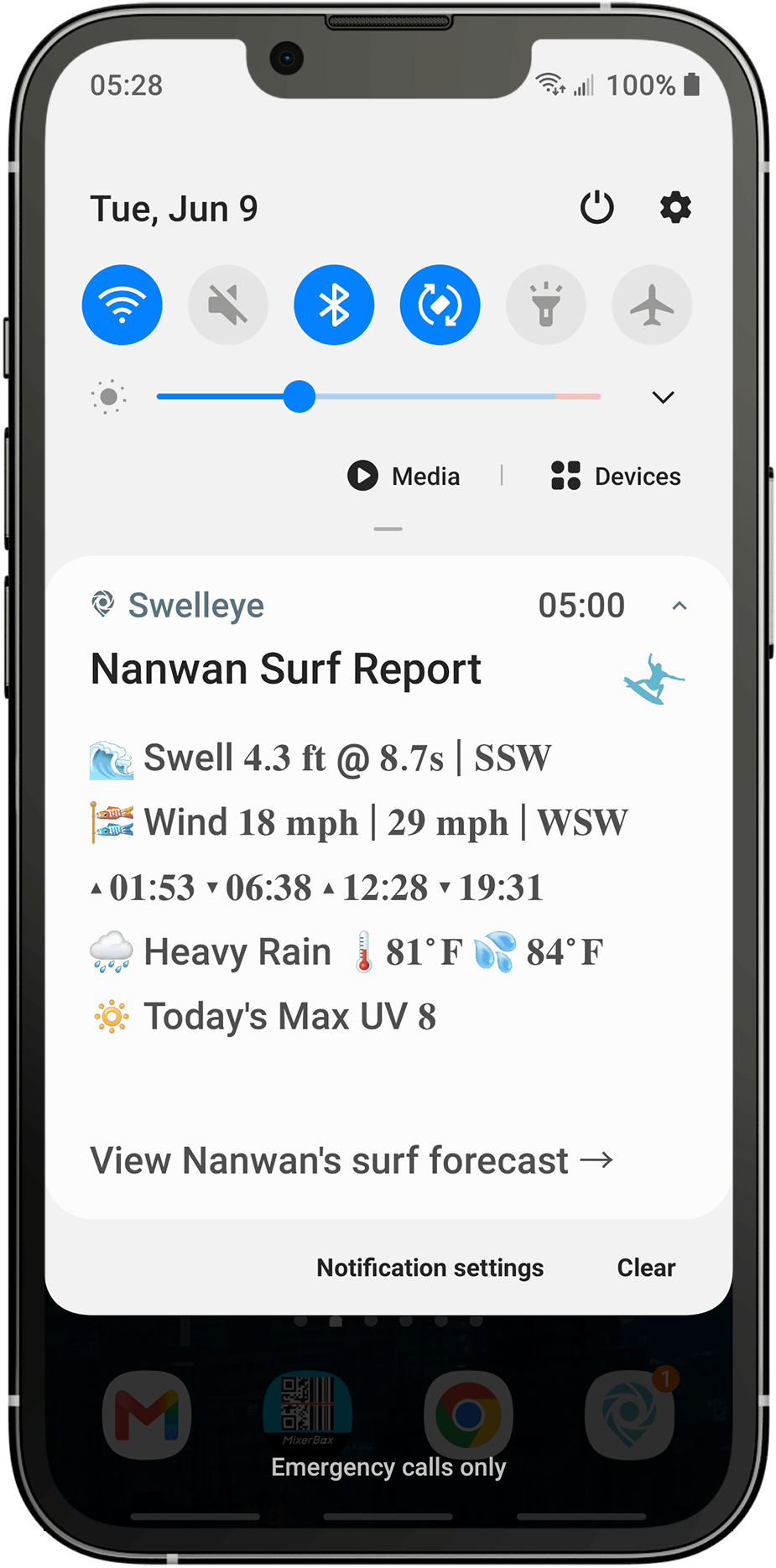
Select one favorite surf spot for daily surf report notifications.
Loading saved selections…
Select one favorite surf spot for daily surf report notifications.
Loading saved selections…
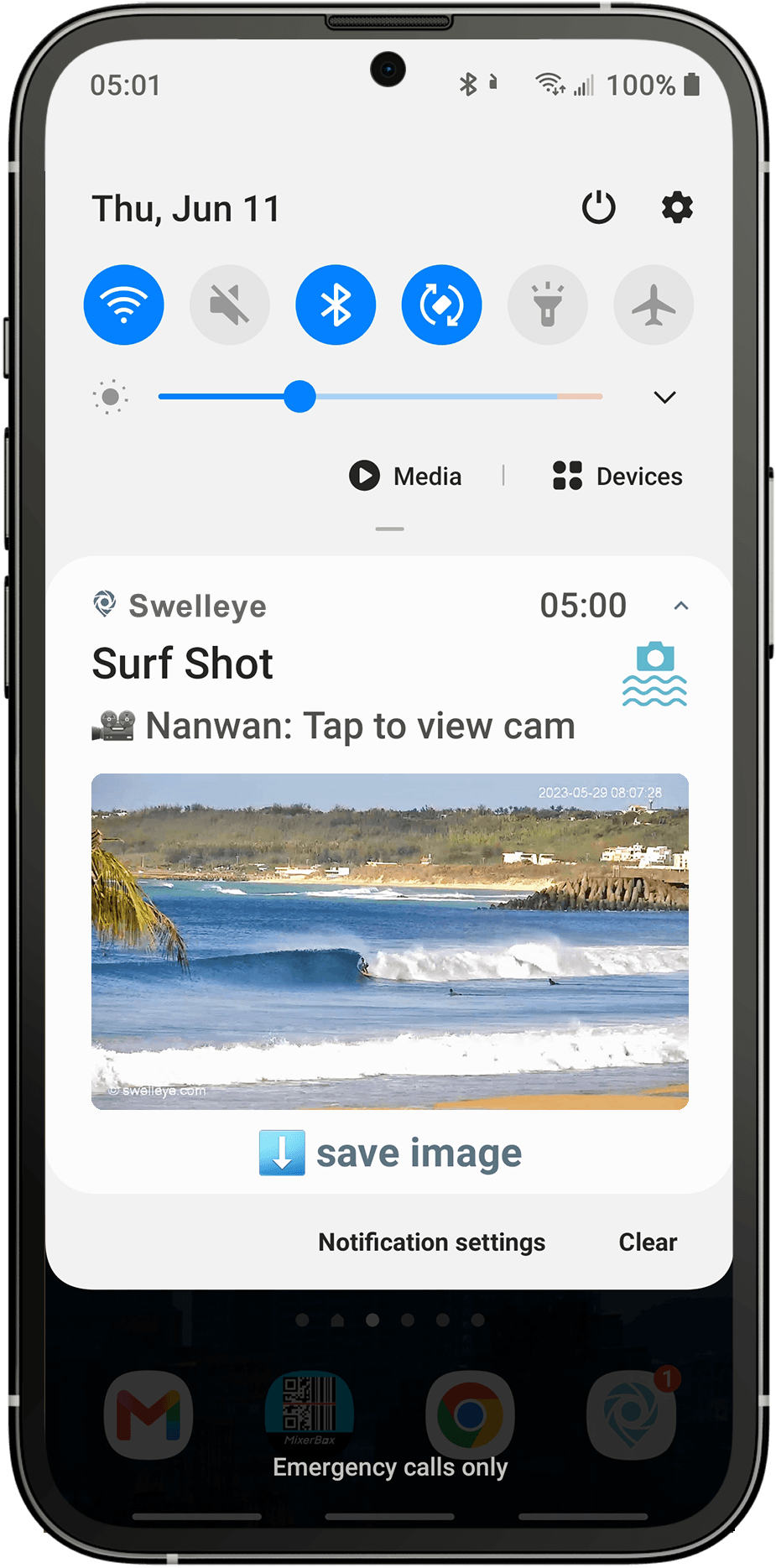
Get a daily push notification with the latest surf cam screenshot of the surf spot you select below.
Loading saved selections…
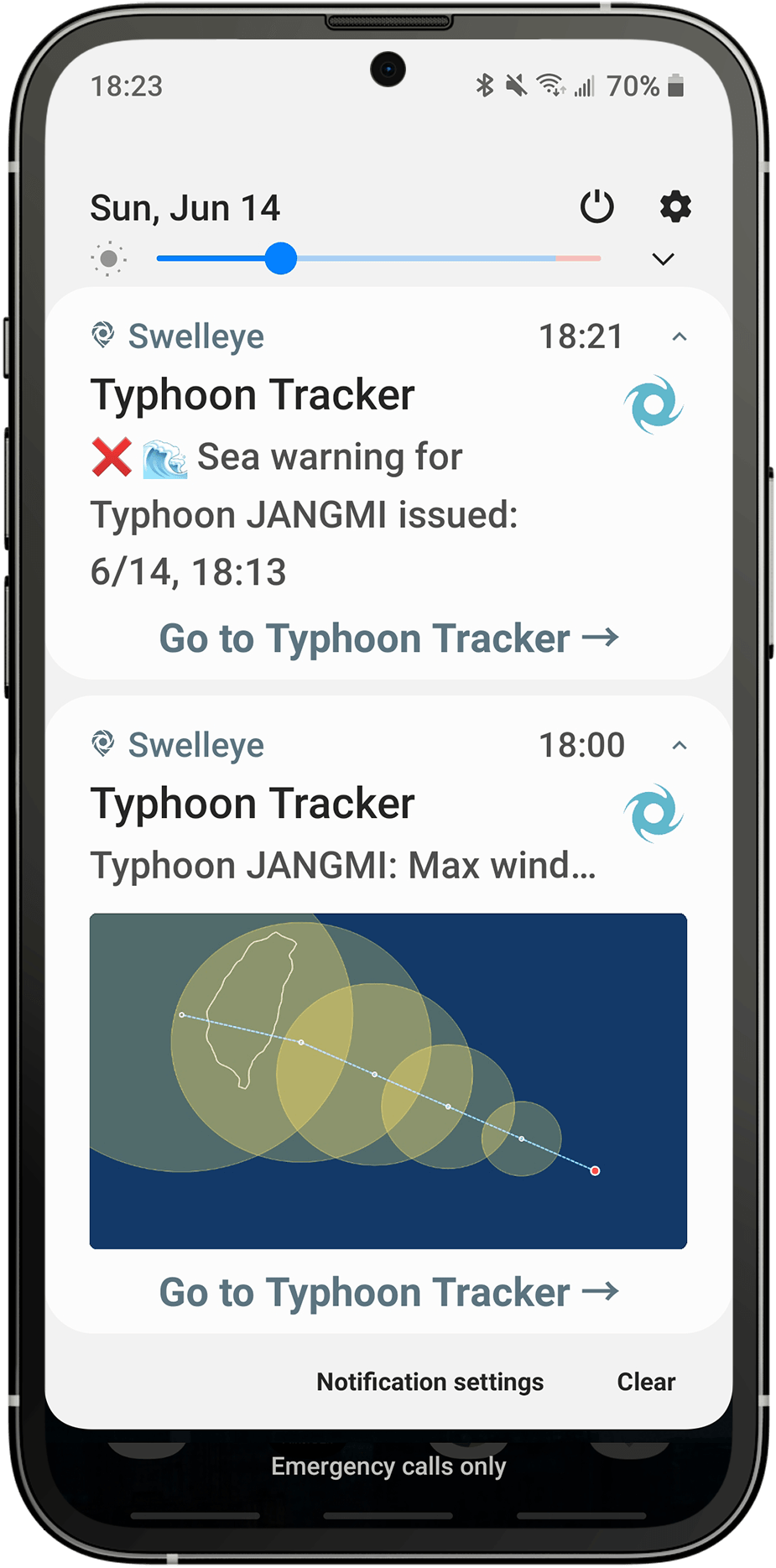
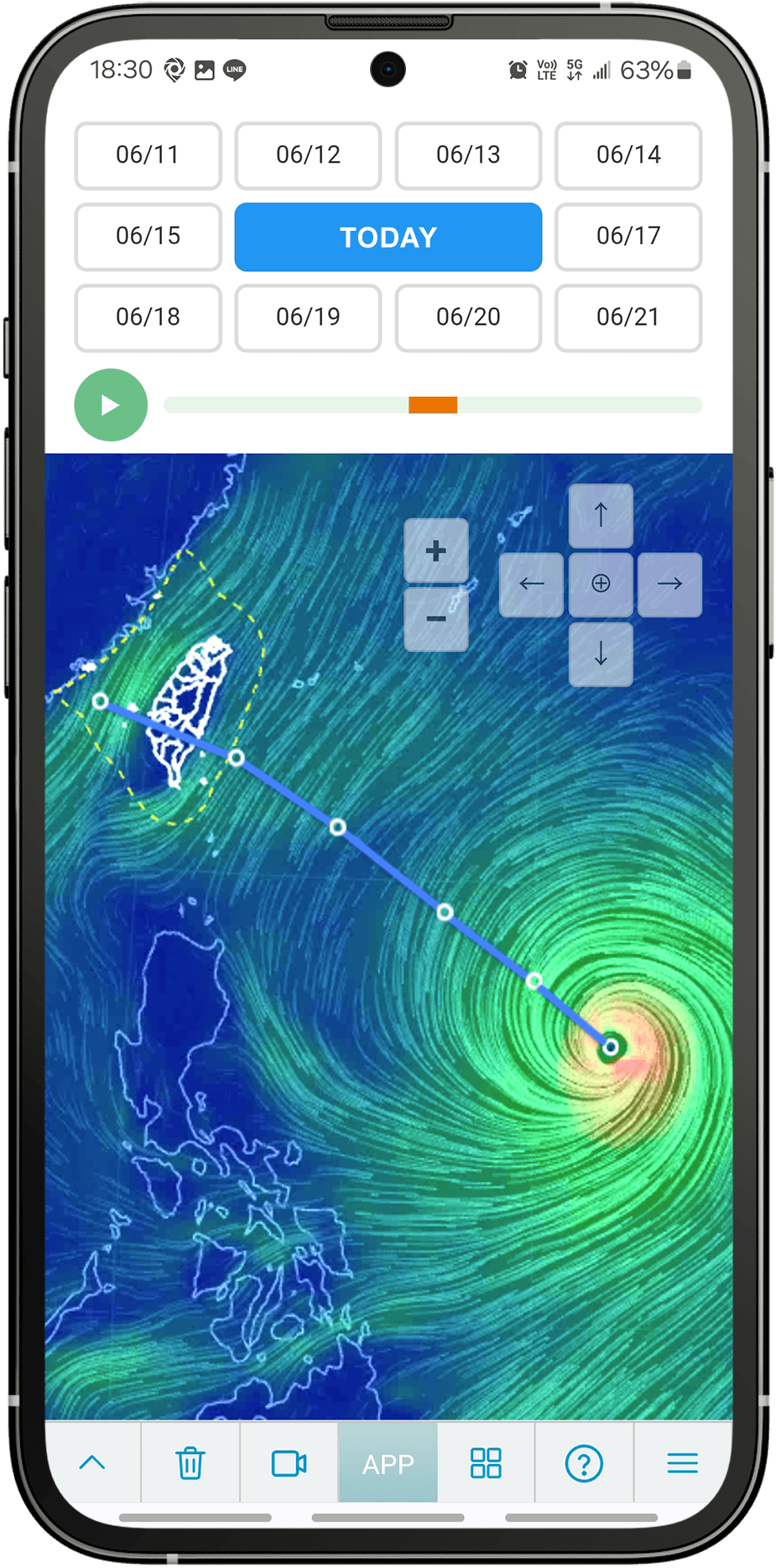
Receive push notifications with the latest typhoon updates, current typhoon map imagery, and sea and land warnings. Notifications will be sent when any of the following conditions are met:
When an active storm is present, storm update notifications are sent up to four times per day, at 3:00 AM, 9:00 AM, 3:00 PM, and 9:00 PM. You can choose one or more of these notification send times below. To receive only sea and land warning notifications, deselect all four send times.
Loading saved selections…
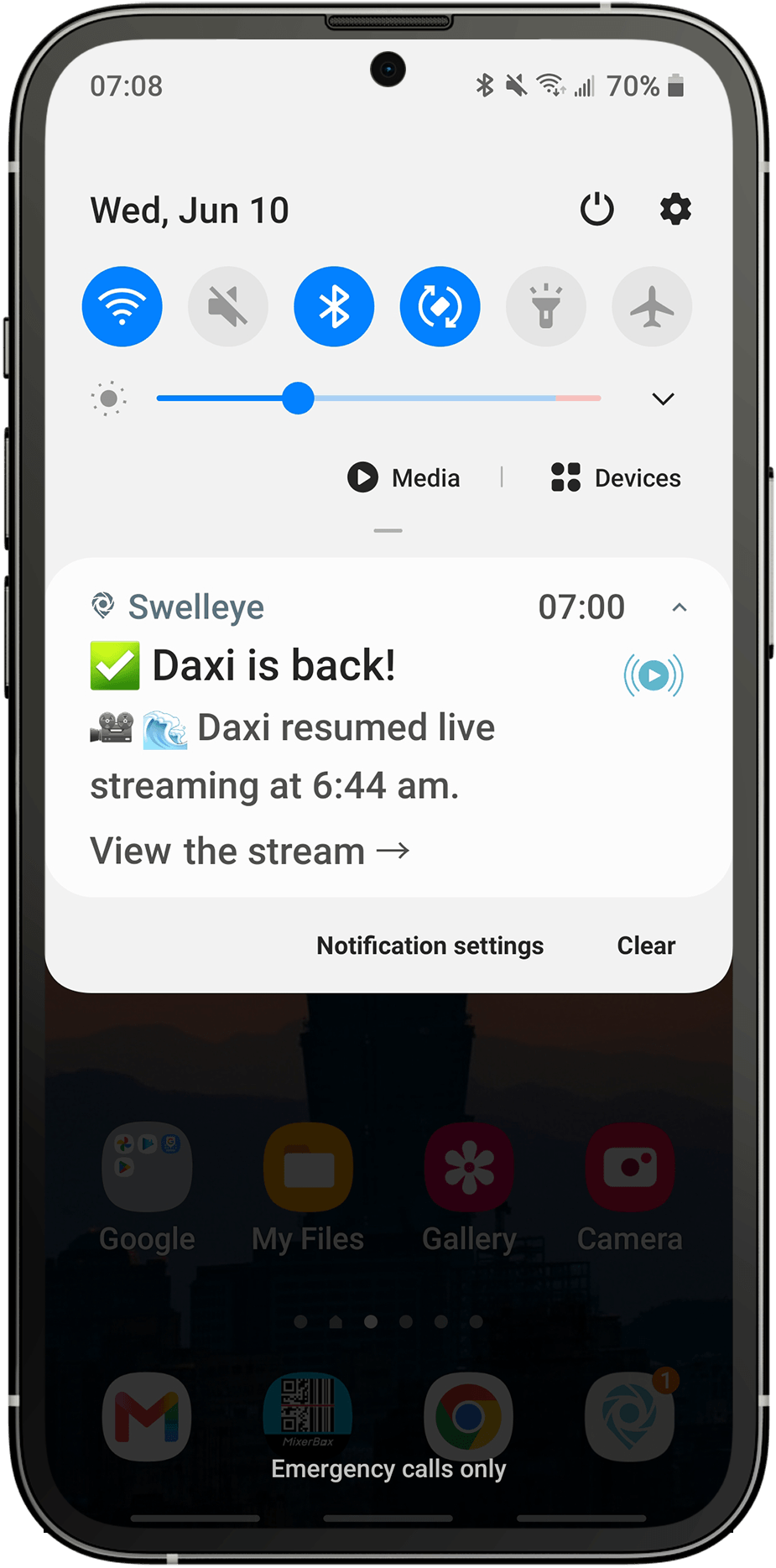
When a stream goes offline, notify me when it comes back online. Select one or more surf spots below to receive Stream Back Online notifications:
Loading saved selections…
Loading your notifications…
Below are common questions about installing and using the Swelleye app, as well as common troubleshooting tips.
The Swelleye APP installs in a few taps using Safari's "Add to Home Screen" feature. Both iPhone and iPad are supported.
The Swelleye APP icon will appear on your home screen. Tap it to launch the APP in full-screen mode (no more Safari URL bar, no more browser tabs).
Once installed, sign in to your Swelleye account from inside the APP to enable push notifications. Notification controls live under the "Push Notifications" section on the APP page.
The Swelleye APP installs via Chrome (or any modern Android browser) using the "Install app" prompt.
If you don't see "Install app" in the menu, look for a small install icon in Chrome's address bar instead (it usually looks like a monitor or a download arrow).
The Swelleye APP icon will appear on your home screen and in your app drawer. Tap it to launch the APP in full-screen mode.
Once installed, sign in to your Swelleye account to enable push notifications. Notification controls live under the "Push Notifications" section on the APP page.
Swelleye push notifications are sent to exactly one device per account, the primary device. This is your phone, your tablet, your desktop computer, or whichever device you currently use day-to-day with the Swelleye APP.
If you install the APP on a second device (a new phone, a tablet, computer, etc.), that device shows the notification settings in read-only mode. You'll see what's configured but you can't change settings from the second device. To manage settings from the new device, you need to switch primary to it.
To switch which device is primary:
The previous primary device will switch to read-only mode automatically.
This limit exists so notifications don't double-send across all your devices. Without it, you'd get the same Daily Surf Report twice every morning if you had both your phone and your tablet installed.
Each push notification type has its own ON / OFF button inside the APP.
You can also disable notifications entirely from your device's system settings:
NOTE: Turning notifications off at the system level overrides the per-accordion controls in the APP. Therefore, if you've disabled Swelleye at the system level, the in-APP notifications ON buttons won't have any effect until you re-enable system notifications.
If you've enabled a notification inside the APP but you're not receiving them, work through these checks in order:
If you've worked through all seven checks and notifications still aren't arriving, please use the below Contact / APP Feedback form and include:
Each notification type has its own opt-in switch, and a few notification types have additional rules:
This is normal, and it usually means your notification endpoint has gone stale.
Each device that's installed the Swelleye APP has a unique push endpoint, which is the address the APP server uses to deliver notifications. Endpoints can expire over time (or after long stretches with the APP closed). When that happens, the server keeps trying to send, but the notification silently bounces.
Opening the app wakes a background helper (the "service worker") that keeps notifications working. The service worker checks the notification endpoint, refreshes it if it's outdated, and clears the temporary "bounce" flag. After that, notifications start flowing normally again.
If you notice notifications going silent again after a day or two without opening the APP, your phone is probably putting the browser into deep sleep. See the next topic for the Samsung / Android fix, or just open the APP once a day to keep the endpoint fresh.
Samsung phones (and some other Android manufacturers) have an aggressive battery-saving feature that silently puts Chrome to sleep if it sits unused for a while. While Chrome is sleeping, your phone accepts notifications from Swelleye's servers but drops them before displaying anything. The notifications never appear on your lock screen.
Opening the APP wakes Chrome back up, which is why notifications start working again immediately.
To prevent this on a Samsung phone:
Other Android phones have similar battery-optimization settings under different menu names. Look for "Battery optimization," "Background activity," or "Allow background data" for the Chrome app.
Yes. On iPhone, push notifications only work for the Swelleye APP after it's been installed to your Home Screen and launched at least once from the Home Screen icon. Visiting swelleye.com in a Safari tab is not enough, and iOS will not send notifications to a Safari tab.
If you've been using Swelleye in a Safari tab and want push notifications:
Once installed and granted permission, push notifications will start sending.
iPhone endpoints can also expire silently after long stretches with the APP closed. If notifications stop arriving, open the APP from your Home Screen icon once. The same wake-up-and-refresh behavior applies on iPhone as on Android.
Apple does not allow Home-Screen-installed web apps (which is how the Swelleye APP installs on iPhone) to embed remote images in push notifications. This is an iOS-level restriction. Every Home-Screen-installed web app on iPhone is affected the same way, not just Swelleye.
What this means in practice:
If Apple ever lifts this restriction, we'll add image support to iPhone right away. Until then, Android is the only platform that shows the Daily Surf Shot and the Typhoon Tracker images in-notification.
Stream Back Online notifications have a few specific rules that explain almost every "I didn't get notified" case:
If you were opted in for the right surf spot, the live stream did transition from offline to online, and you still didn't receive a notification, please use the below Contact / APP Feedback form and include the spot name plus the approximate time you expected the notification.
Push notifications continue for a short grace period after your PRO subscription expires. This grace period is about 8 hours (Taiwan time). This is intentional, not a bug. We allow a short grace period, so for example a subscription that expires at 3 am doesn't interrupt your morning Daily Surf Report.
After the grace period ends (typically mid-day Taiwan time on the day after your subscription expires), the PRO check kicks in and push notifications stop for that account (unless you purchased a new PRO subscription).
If you cancelled accidentally and want to keep receiving push notifications uninterrupted, you can re-subscribe at any time from your My Account page. There's no waiting period for a re-subscribe to take effect.
Hit a bug, have a feature request, or want to share feedback about the Swelleye APP?
Please let us know so that we can make the APP even better
See the surf first!
See the surf first!
© Swelleye, Ltd. All rights reserved.
See the surf first!
See the surf first!
All rights reserved.